beorg supports a number of ways of syncing your files. One of these is WebDAV. WebDAV isn’t owned by a company, but is an open standard that anyone can build services around. Many of the smaller cloud service providers support WebDAV. If you don’t want to use Dropbox, iCloud, or Box, and would rather have more choice over who hosts your files, then choose a solution that allows WebDAV.
A couple of examples of Europe-based providers recently came to my attention: Koofr and pCloud. Both of these support WebDAV, which means you can use them to sync your files with beorg 😻.
Let’s take a look at how to set up WebDAV for beorg using Koofr.
Start by creating an account on Koofr.
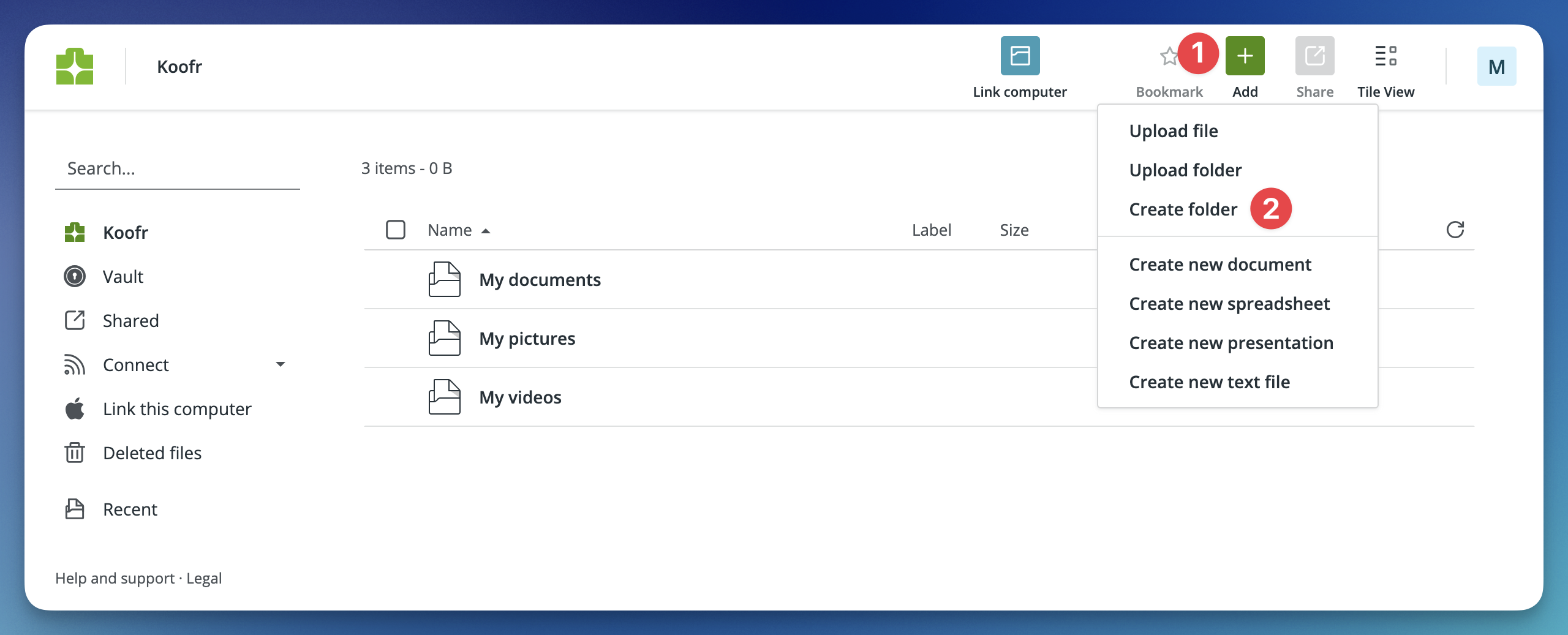
Then, create a folder for your org files. By default, beorg will look for a folder called org in your home directory. If you want to call this something else, make sure you change the Folder setting in beorg.
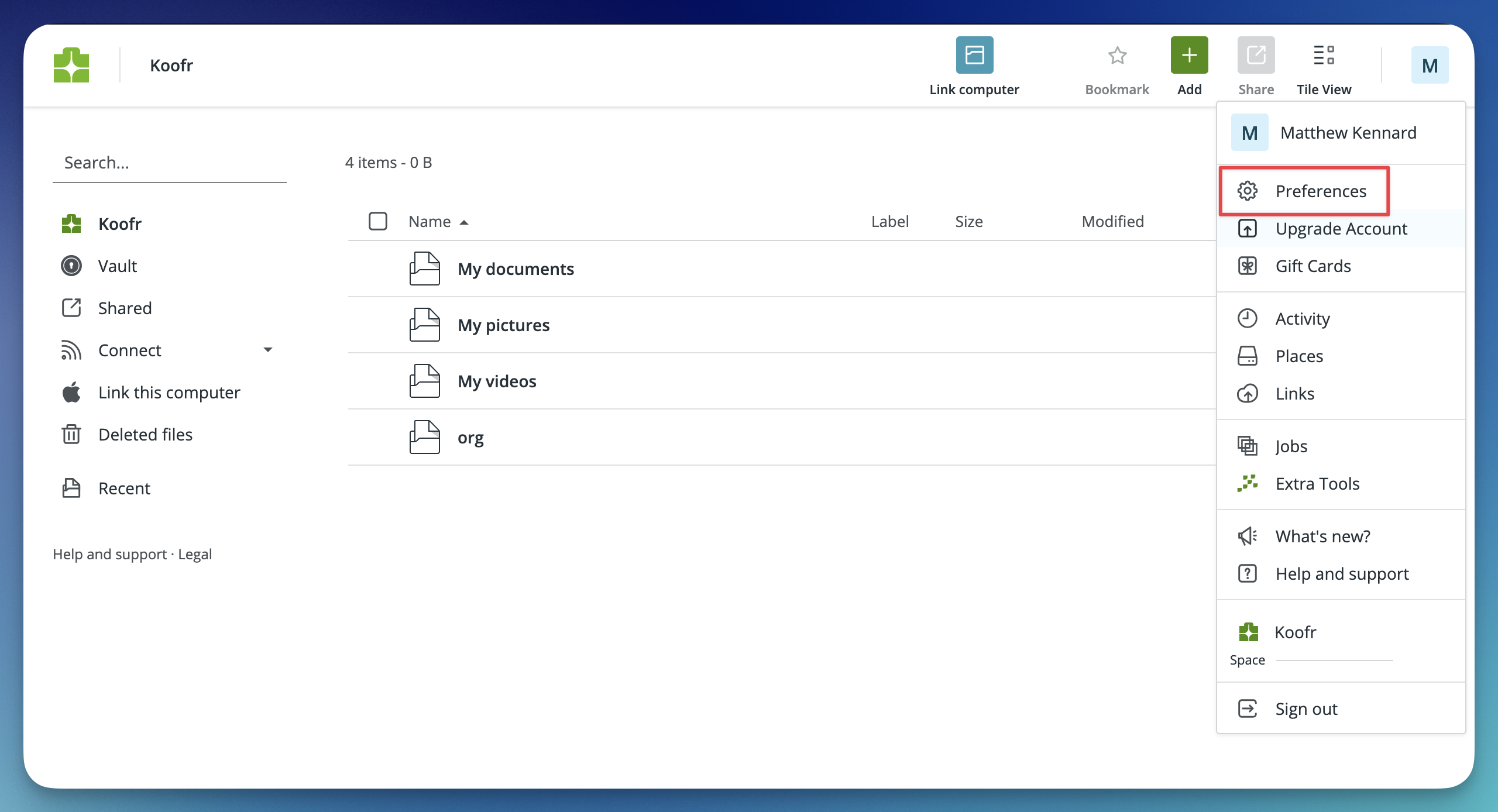
Next, you’ll need to create an app-specific password for beorg to use. Start by selecting Preferences from the top-right menu.
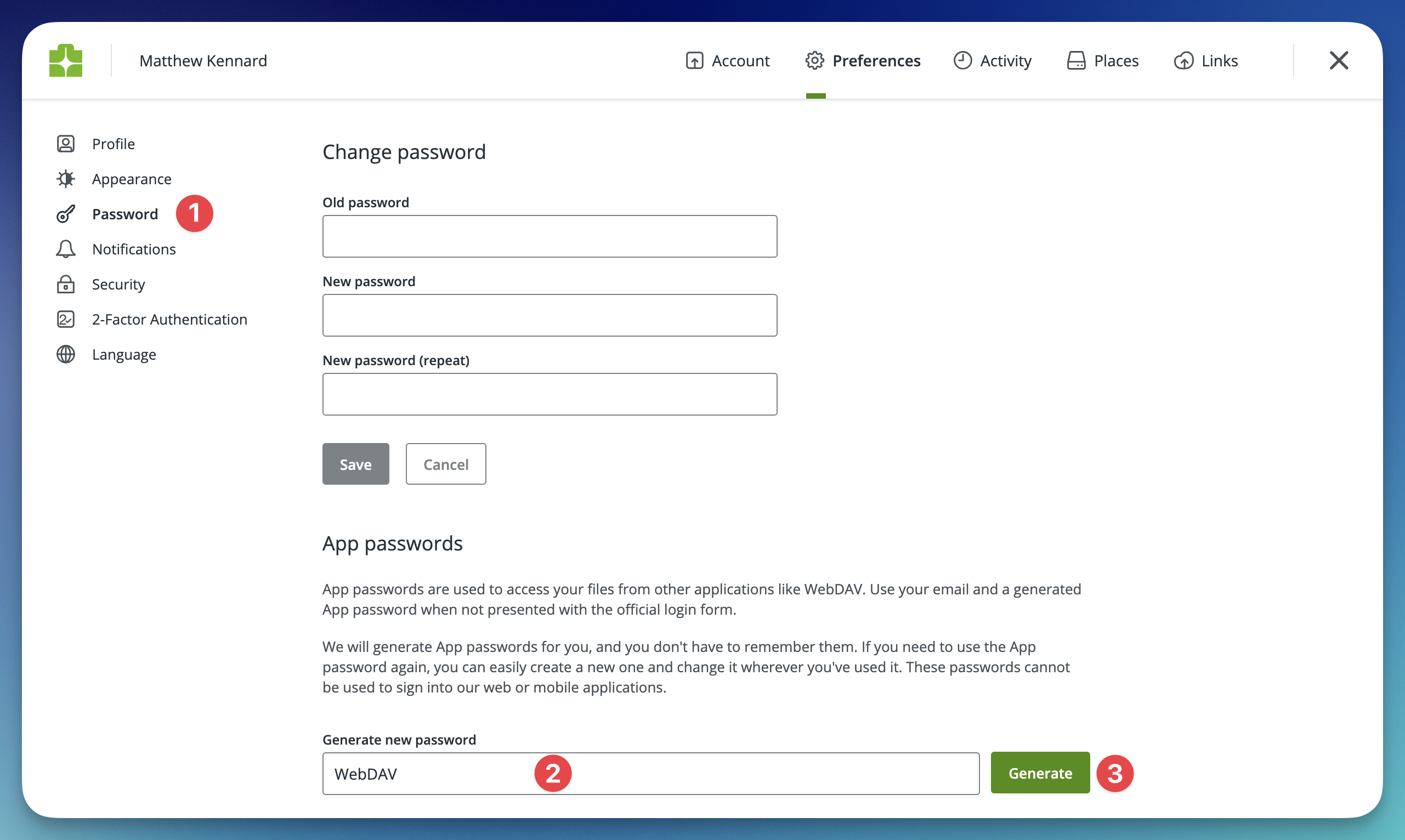
Now, select Password from the left-hand menu, and give your app-specific password a name.
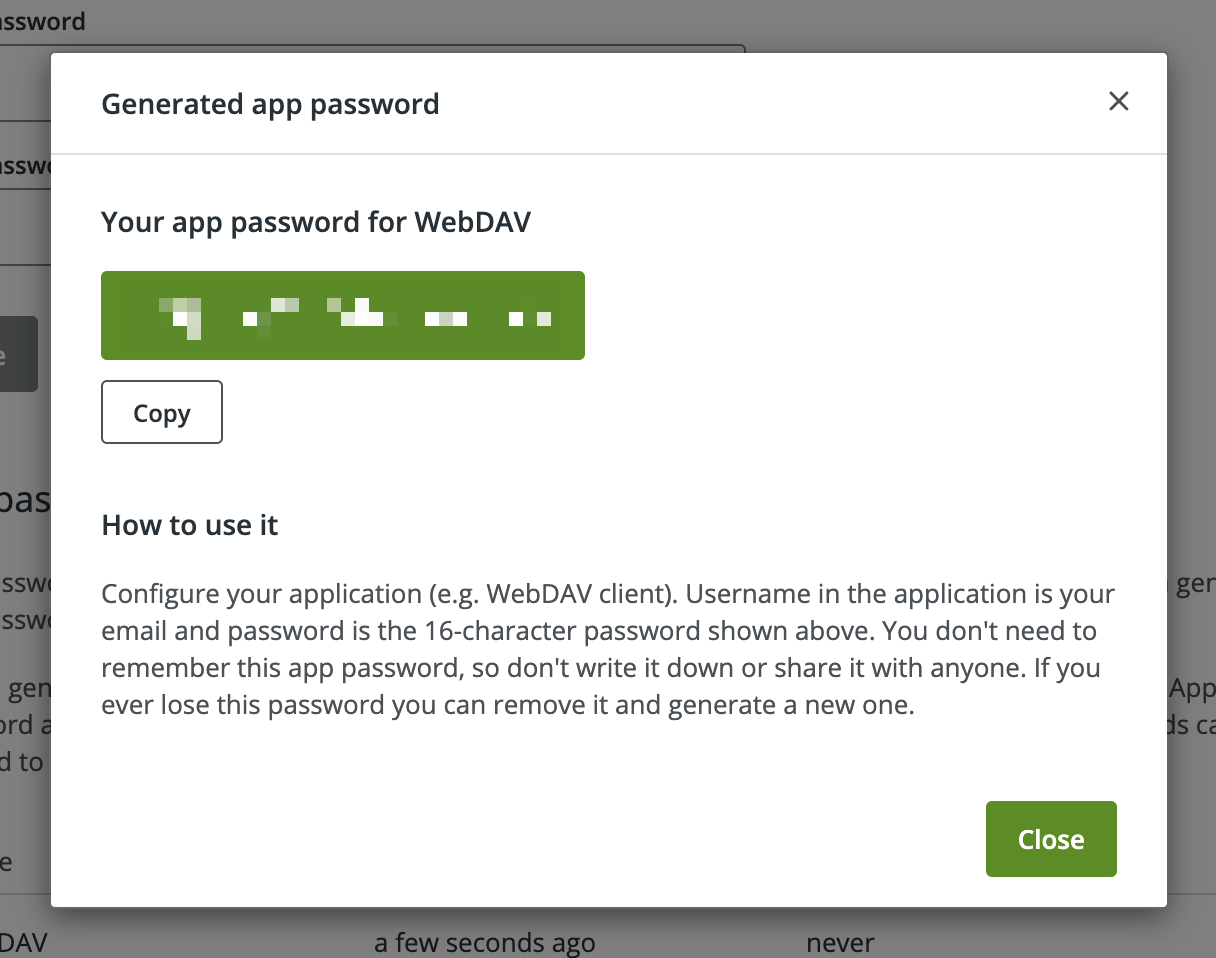
When you click Generate, you’ll be shown the generated password. Save this in your password manager for safekeeping. You’ll need to enter this into beorg shortly.
You can now fire up beorg and tap the Settings tab. Select WebDAV as the sync method, and enter the following details:
- WebDAV URL: https://app.koofr.net/dav/Koofr
- Username: The email address you signed up to Koofr with.
- Password: The app-specific password you generated.
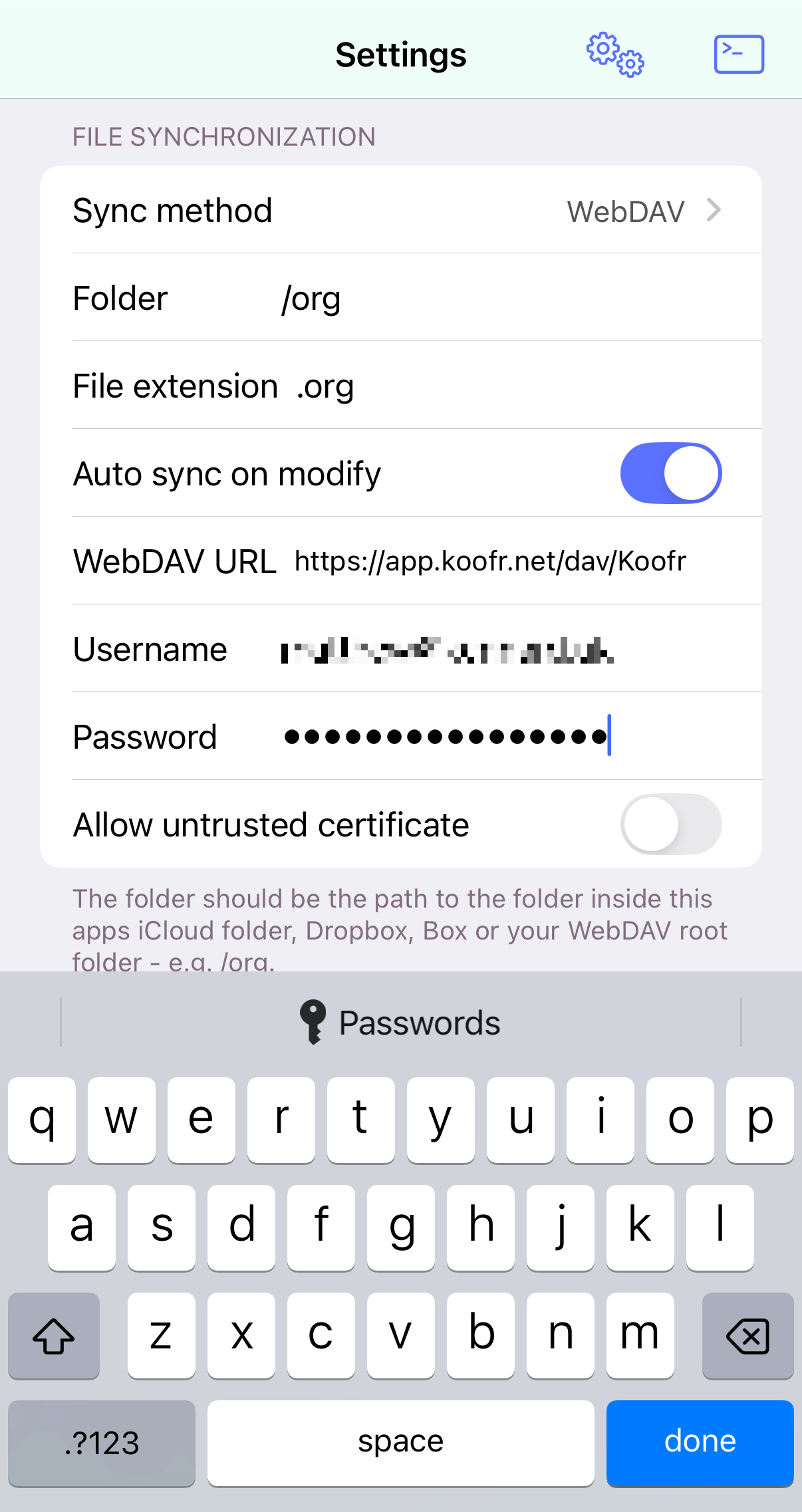
beorg will now sync your files to Koofr! Go to the Files tab and tap the sync button (top-right) to sync straight away.
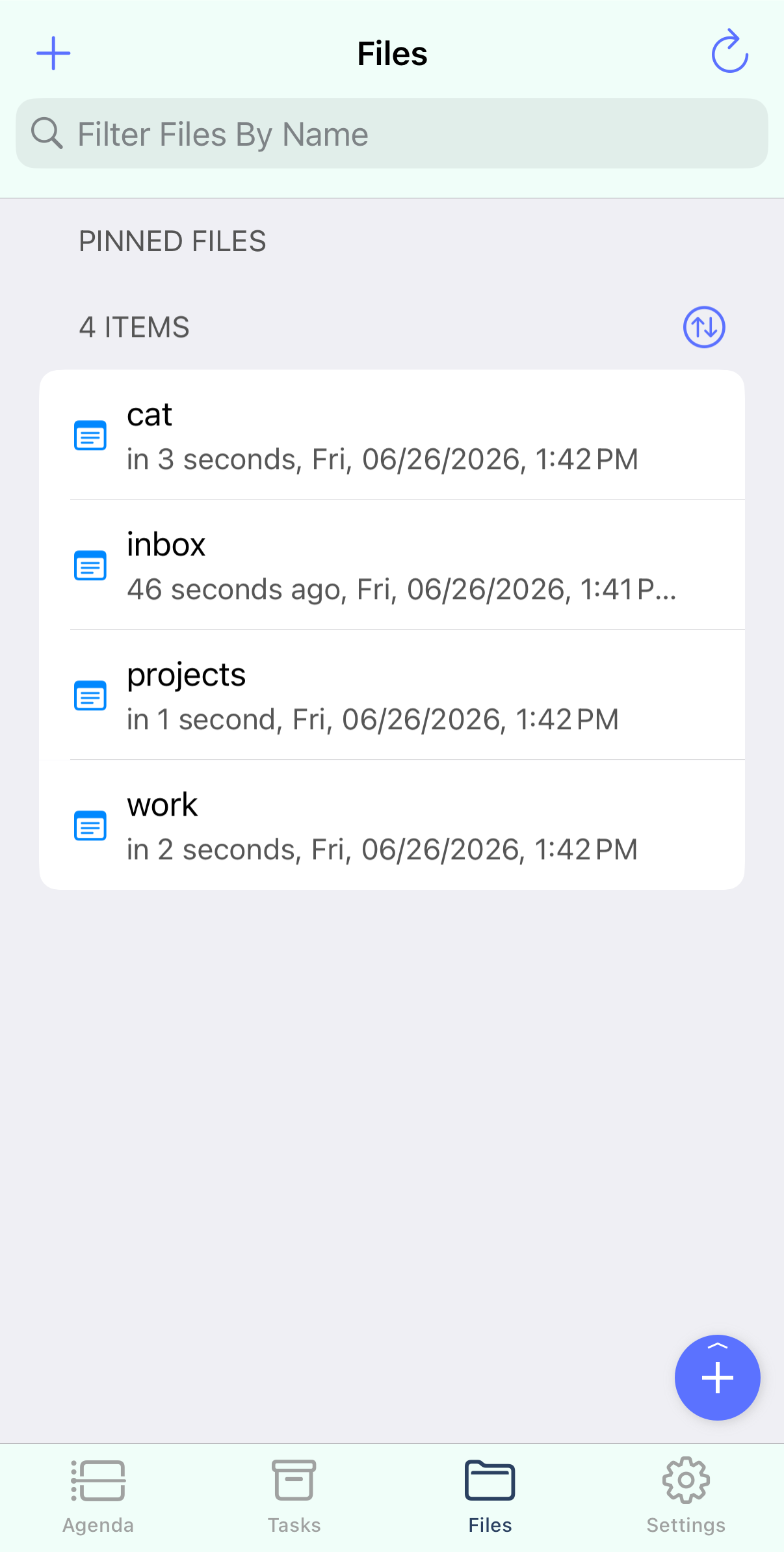
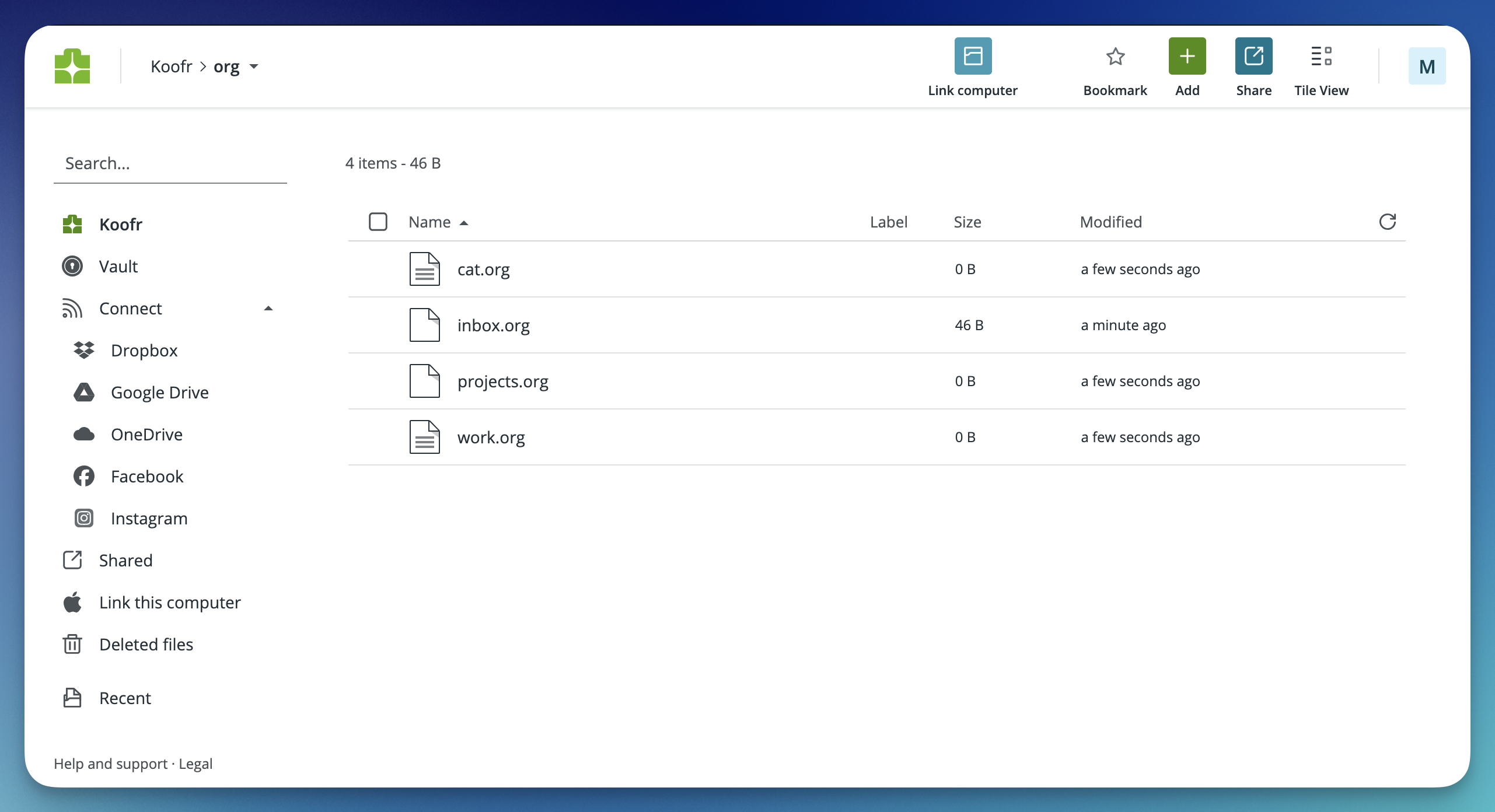
Koofr has a number of help articles on using WebDAV. A good one to start with is here.
pCloud also supports WebDAV, and you can find out more here.
There are many other storage providers that support WebDAV, all of which should work with beorg. One of the advantages of beorg over other task managers is the choice it gives you over where your data is stored. If you aren’t happy with the storage provider you’re using, try a different one!